Fast Converter · Guides
How to prepare a 3D model for Blender
The right format depends on what you need to edit: static geometry, materials or animation. Start by deciding which data must be preserved.
1. Choose the right workflow
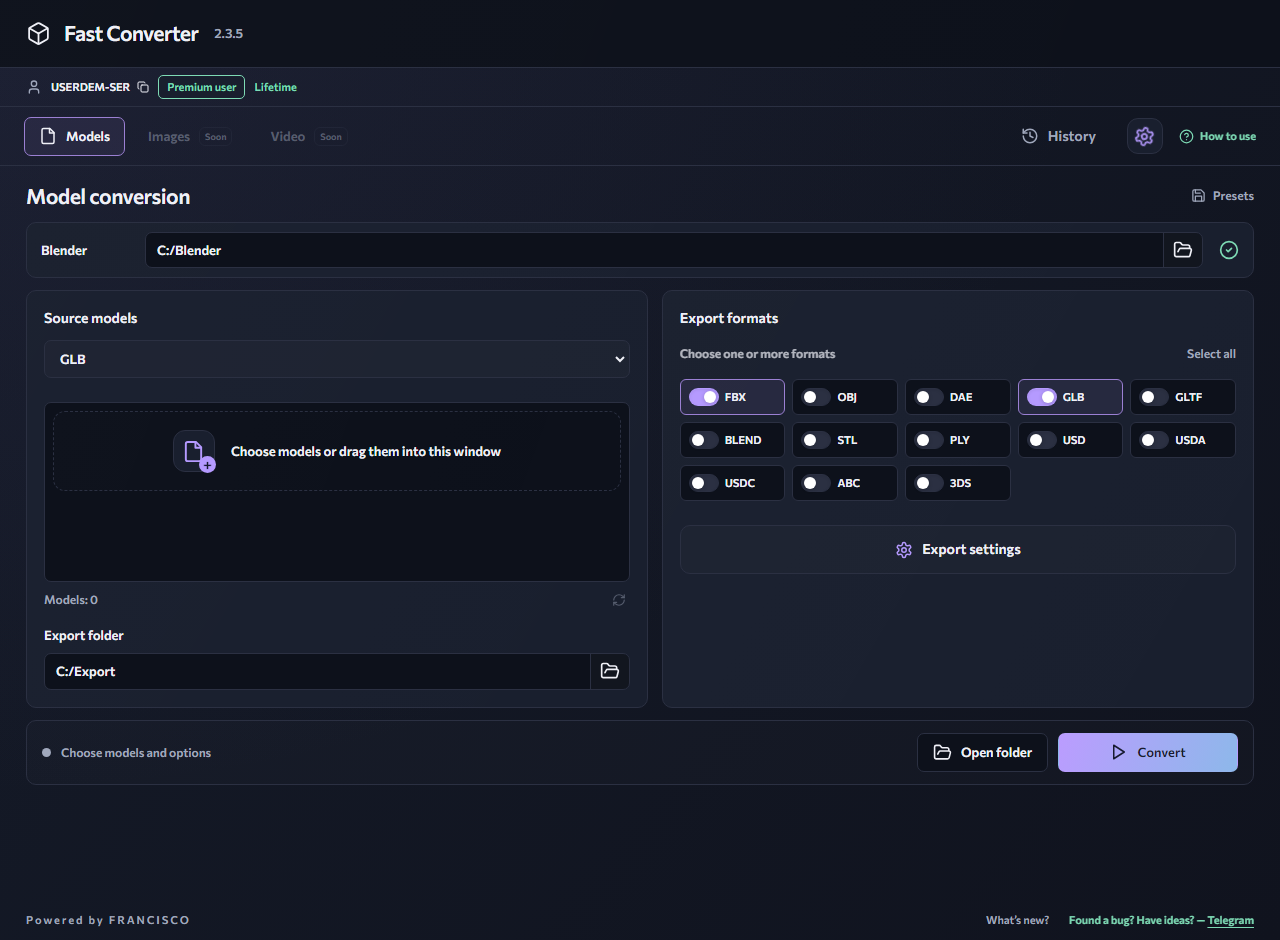
If Blender already opens the source format, you can import a single model directly. Fast Converter is useful for repeating the workflow across multiple files with consistent settings. You can export FBX to BLEND, use OBJ for static exchange, or choose GLB for a glTF workflow.
2. Keep linked resources
Keep the source model, images and supporting files together. Do not delete the original after the first conversion. If animation and a rig matter, avoid OBJ as an intermediate format and enable the relevant export options.
3. Inspect the scene in Blender
Open the result and check scale, orientation, normals and materials. For a character, inspect the bones and play the animation. Moving between formats may change material representation and scene structure; adjust them before continuing work if necessary.
4. Prepare the project for sharing
Make sure images have accessible paths or are packed into the BLEND file. Save a copy and check that it opens correctly. Confirm the recipient’s Blender version: saving as BLEND does not guarantee compatibility with every older version.
Related reading
FBX to BLEND — prepare a Blender scene
Save an imported FBX model as a Blender project. Fast Converter can repeat the operation for multiple FBX files without manually opening each one.
GLB → FBXHow to convert GLB to FBX
Convert a GLB model to FBX for a 3D editor or game project. Fast Converter processes files locally on Windows using your installed copy of Blender.
Windows 10 / 11 · Installed Blender required · Local processing