Fast Converter · Conversions
FBX to BLEND — prepare a Blender scene
Save an imported FBX model as a Blender project. Fast Converter can repeat the operation for multiple FBX files without manually opening each one.
Windows 10 / 11 · Installed Blender required · Local processing
When to choose this format
BLEND is useful for further scene editing in Blender. The converter imports the FBX and saves the resulting scene; it cannot recover modeling history or original modifiers from another editor.
How to convert
- Install Fast Converter and Blender. Select the installed Blender folder in the Blender field.
- Select FBX input and add your files with their linked resources available.
- Choose BLEND output. Open export settings and enable the options you need.
- Choose a separate output folder and click Convert. Open the result in the destination application after processing.
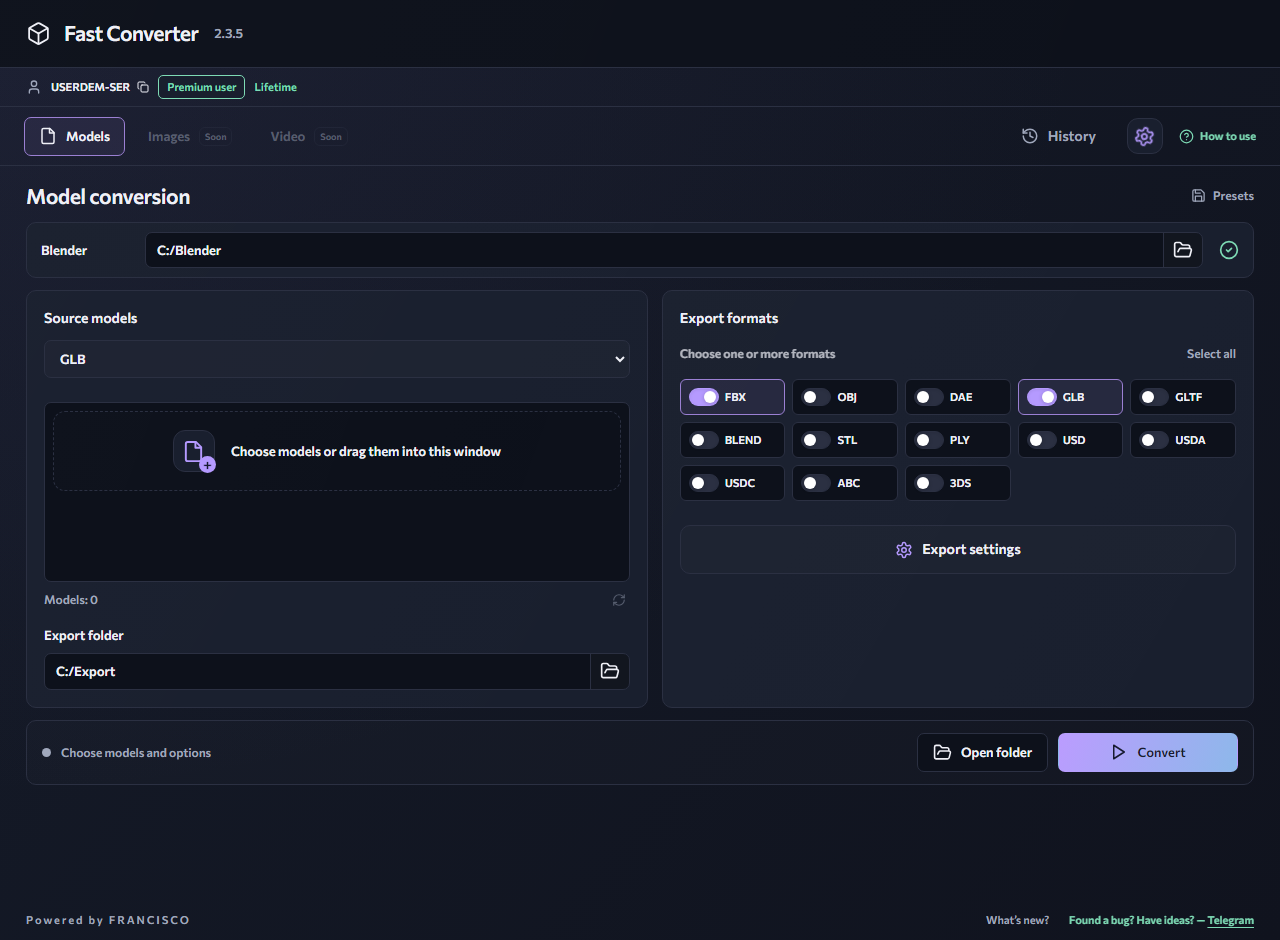
Export settings
Select your installed Blender folder, choose FBX input and BLEND output. Enable the texture, animation and skeleton options you need. Use a compatible Blender version when editing the result.
What to keep in mind
The output depends on what Blender’s FBX importer can read. Constraints, drivers and materials from other applications may need adjustment. Do not assume that scenes from different applications will be identical.
Check the result
Open the BLEND in Blender, inspect materials and collections, and check the rig and animation if present. Before sharing the project, make sure images are accessible or packed into the file.
Available in the free version
Process multiple models of one input format and choose one output format per run. Free input formats: GLB, GLTF, FBX, OBJ and BLEND. Free outputs: FBX, OBJ, DAE, GLB, GLTF and BLEND. Mixed inputs, multiple outputs, advanced formats, model preview, LOD removal and ungrouping require Premium.
A small verified example
We checked this workflow with a simple textured cube using the Fast Converter conversion script and Blender 4.0. This verifies a basic scenario; it does not guarantee compatibility with every model, material or rig.
Download source and result (ZIP)Common questions
Do I upload my model to the website?
No. Install the Windows application: conversion runs on your computer using Blender. The website provides an interactive interface demonstration.
Can I convert multiple files for free?
Yes: add multiple models of one supported input format and choose one supported output format. Mixed input batches and multiple output formats require Premium.
Related reading
FBX to OBJ — export a static model
Convert FBX files to OBJ for static geometry workflows. Process multiple FBX models in one run and save the results to a separate folder.
FBX → GLBHow to convert FBX to GLB
Save an FBX asset as GLB for a viewer or project that supports glTF 2.0. Prepare the images referenced by the FBX before converting a textured scene.
GuidesHow to batch-convert 3D models
Batch conversion removes repeated setup: choose an input format, add your models, configure export and start processing.
GuidesWhy textures go missing after conversion
A gray or pink model does not necessarily mean its geometry was lost. Check the source images, their paths and the output format’s capabilities first.
Windows 10 / 11 · Installed Blender required · Local processing