Fast Converter · Radial menu
Fast Converter radial menu: user guide
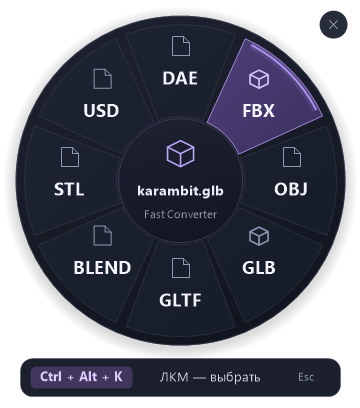
Hover over a model, press your assigned shortcut and click a format. Fast Converter runs the conversion in the background and saves the result beside the source.
1. Prepare the application
Install the latest Fast Converter, launch it and select your Blender folder. Keep Fast Converter running: its icon remains in the Windows system tray when you close the main window.
2. Open the menu beside a model
Hover over a supported 3D model in Windows Explorer and press your assigned key. The default is the ` (~) key. You do not need to select or drag the file. Hovering alone does not open the menu.
3. Click an export format
Left-click the required sector. Only this click starts export. Hovering over a sector, releasing the shortcut or pressing Enter does not start conversion.
4. Wait for the result
Conversion runs in the background. A small indicator at the lower right shows the current file and result without taking focus. Output is saved in the source model folder without subfolders; name conflicts do not overwrite the source.
5. Customize the menu
Open Settings → Radial menu. Click the shortcut field and press your chosen key or combination. Drag a format inside the circle to add it, or onto a sector to replace it. Rearrange sectors and choose up to 8 formats. Click Apply.
6. Cancel the selection
Press Esc, press the opening shortcut again, or click ×. The menu also closes when you move the pointer away or switch windows. Cancelling does not start conversion.
Free and Premium
Paid formats have a lock and require an active Premium subscription. Availability also depends on the source format and export options. Subscription access is checked before conversion.
Free and PremiumIf the menu does not appear
- Check that Fast Converter is running and that the radial menu is enabled in settings or in the tray icon menu.
- Point directly at a model file in Windows Explorer and check the assigned shortcut in settings. Choose another shortcut if Windows or another application uses it.
- If export does not start, check the Blender path, subscription and the error report in the application. Update Fast Converter if needed.