Fast Converter · Guides
How to batch-convert 3D models
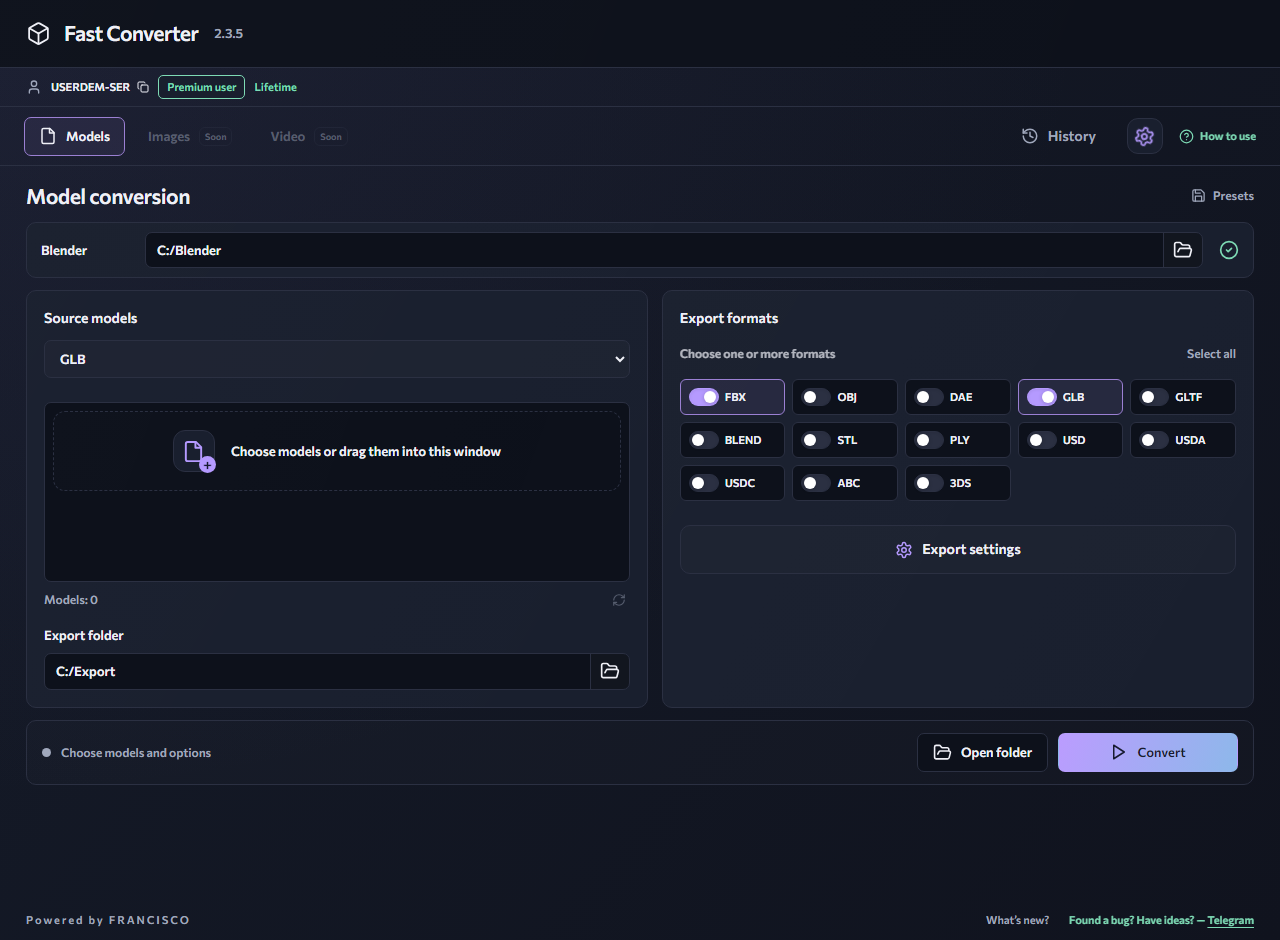
Batch conversion removes repeated setup: choose an input format, add your models, configure export and start processing.
1. Start with a small test batch
Begin with two or three models of the same format. Keep the originals and their textures together. Install Blender and select its folder in Fast Converter. Use a fresh output folder for the first run so the results are easy to inspect.
2. Choose input and output
For example, select FBX, add several .fbx files and choose OBJ output. The free version accepts multiple models of one supported input format and one supported output format per run. Mixed input formats and multiple output formats require Premium.
3. Configure the result
Open export settings. Enable textures if needed, and choose animation and skeleton options for an output format that supports them. You can also organize results into folders or ZIP archives. Do not expect OBJ to preserve animation.
4. Check before scaling up
Wait for processing to finish and review any errors. Open several results in the destination tool and check model size, materials and any required animation. Then process the remaining models using those settings. Conversion time depends on model complexity, textures and your computer; there is no fixed duration for every batch.
Related reading
FBX to OBJ — export a static model
Convert FBX files to OBJ for static geometry workflows. Process multiple FBX models in one run and save the results to a separate folder.
GLB → FBXHow to convert GLB to FBX
Convert a GLB model to FBX for a 3D editor or game project. Fast Converter processes files locally on Windows using your installed copy of Blender.
Windows 10 / 11 · Installed Blender required · Local processing